
Engine
For instructions on how to import third-party engines such as Kingsrow and Cake into CheckerPlayer, look below for the menu item “Navigate to Engine Folder”.
There are two engines, Primary and Secondary. The primary engine is the one you play against and analyse with in the main interface. The secondary engine can be used for Autoplay games or for engine matches to test one engine against another. In the sections below you can learn how to install engines into CheckerPlayer. For suggestions of engines you can use, see the Additional Info at the end of this help page.
The engine parameters will normally be retained from session to session (depending on the quality of the engine) and in the case of ZoeEngine the primary and secondary values can be changed independently of each other. Third-party engines tend to retain their data in the registry which means that if both primary and secondary point to the same engine then the parameters will end up being the same and this may not be obvious at first glance. Another effect of the registry is that if you switch to/from another program like Checkerboard, the settings you used in that program (such as the location of endgame databases or opening books) will be retained. There are a few minor issues regarding compatibility between CheckerPlayer and Checkerboard. For example, CheckerPlayer likes to have a full path specified for things like database folders, whereas Checkerboard is happy with a relative path (relative to Checkerboard that is). CheckerPlayer tries to smooth things over somewhat when it spots this, but if you frequently switch from one program to the other, be prepared to tweak the engine settings sometimes.
Please bear in mind that engines are not always consistent. Some have disabled options, or options that might work in a different way to other engines. Some engines may have bugs and these can even cause crashes. I’d be interested to hear about any of these and of course any problems you have encountered with CheckerPlayer or suggestions for improvements. I’ve put some extra notes about this in the Additional Info section at the end of this document.
Engine Parameters
If you are familiar with Martin Fierz’s Checkerboard then you will know many of the options on this dialog. Since the secondary engine options are the same as the primary, I’ll just cover the primary. In contrast to Checkerboard, the “Show all Scores” facility has been removed as it is available to select on the main interface and only really applies to the primary engine anyway. The same goes for the “Solve Mode”.
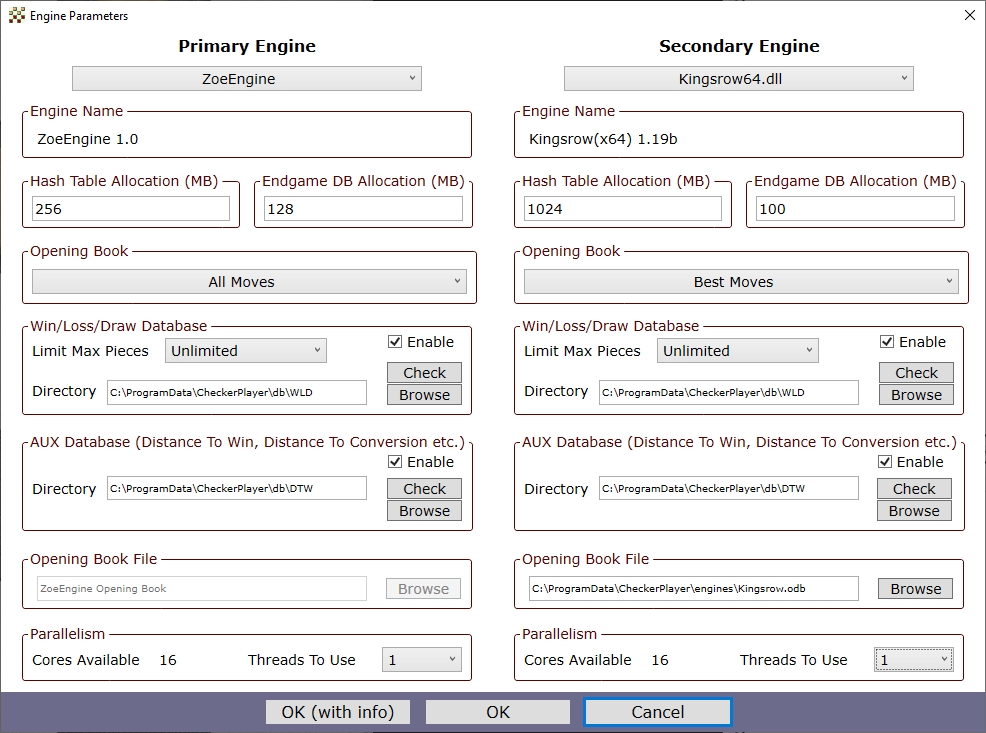
Primary Engine
This is a drop-down of the engines that exist in the engine folder. Anything with a DLL suffix will appear in this list. ZoeEngine always appears at the top – it’s the default engine built-in to CheckerPlayer and if problems are detected with other engines the interface will default to ZoeEngine.
Usually the engine folder will contain engine DLLs, opening book binary files and sometimes help documents too. The engine folder is:
C:\ProgramData\CheckerPlayer\engines
This ProgramData folder is a Windows hidden folder. More on this below, but you can navigate to it more easily if you set the “view hidden folders” option in Windows.
After installing CheckerPlayer, this folder has no third-party engines installed but you can add them yourself by depositing them in the folder (there is a handy option on the main Engine menu that navigates to this folder, described later).
Engine Name
This is the name that the engine has given itself.
Hash Table Allocation (MB)
Most engines will maintain an internal hash table to speed up processing. You can adjust the size of this. Larger hash tables don’t usually add much benefit since they can’t be filled adequately in the available time, but it is recommended not to go below 256MB. The hash table size you choose may not be fully utilised, this is due to the way the engines work. You can see the actual hash size if you click on the “OK (with info)” button. Normally, the hash size used by the engine can be increased only by doubling it.
Endgame DB Allocation (MB)
Some engines such as ZoeEngine can use an endgame database to play perfect moves at or near the endgame. ZoeEngine comes with the de facto standard checkers endgame databases, namely Ed Gilbert’s which he developed over many years and are used in ZoeEngine with kind permission. The supplied databases are 6-pieces and for these the default 64MB is more than enough. For larger databases, which you can download from Ed’s site, you will need more memory allocated to improve performance. For 8-piece databases, 4GB or more is recommended. For 10-piece databases, which are about 100GB on storage media, you need as much memory as possible to get the best performance. The supplied AUX database – Distance-To-Win (DTW) – has memory allocated by ZoeEngine automatically and so the value you enter here applies to WLD databases only.
Opening Book
As noted in previous sections, this can be set to Off, All Moves, Good Moves and Best. All Moves gives the widest variety of openings but the behaviour of this is dependent on the engine.
Win/Loss/Draw Database
Some engines such as ZoeEngine can use WLD databases.
- Limit Max Pieces: If you are using a large WLD database, say 8 pieces and you want to limit it to 6, you can do that here. The default is unlimited.
- Directory: This is the location of the WLD database. The default installation of CheckerPlayer creates a folder: C:\ProgramData\CheckerPlayer\db\WLD which holds a 6-piece Win-Loss-Draw database. This can be replaced with a larger database if desired, or if you already have one on your machine you can change the Directory to point to it.
- Browse: You can browse to the location of your WLD database. Be aware that some engines have a limitation in that they can’t handle full paths.
- Check: Click this to check the contents of the path and see if it’s a valid WLD database.
- Enable: Lets you switch the WLD database off and on.
AUX Database
Some engines can use auxiliary databases such as Distance-To-Win (DTW) or Distance-To-Conversion (DTC). ZoeEngine can use DTW and is supplied with a 6-piece DTW database.
- Directory: This is the location of the auxiliary database. The default installation of CheckerPlayer creates a folder: C:\ProgramData\CheckerPlayer\db\DTW which holds a 6-piece Distance-To-Win database. This can be replaced with a larger database if desired, or if you already have one on your machine you can change the Directory to point to it.
- Browse: You can browse to the location of your auxiliary databases. Be aware that some engines have a limitation in that they can’t handle full paths.
- Check: Click this to check the contents of the path and see if it’s a valid database.
- Enable: Lets you switch the auxiliary database off and on. ZoeEngine allows the use of DTW databases, but some other engines can use DTC databases too, which can be placed in C:\ProgramData\CheckerPlayer\db\DTC
Opening Book File
Some engines use an opening book and ZoeEngine is no exception. Books are not generally interchangeable, so it’s unlikely you’ll be able to use one engine’s book with another engine. ZoeEngine’s book is built-in and contains data for Go-As-You-Please games (which by definition includes 3-move and 2-move openings). Other engines, e.g. Kingsrow, allow the selection of different books. Most books reside in the engine folder. Some engines may use a built-in book which is not visible to the interface.
Parallelism
A few engines can use parallelism to increase the playing strength. It is recommended to use fewer threads than there are available cores, since using the maximum could impact the CheckerPlayer interface (and probably anything else you are running). The results of parallelism can be variable depending on how it is being used. If you are trying to play very fast engine matches, using more than one thread may actually impact engine results due to the overhead of thread management.
Navigate to Engine Folder…
This will open the engine folder. Any engines you place in here, e.g. Kingsrow64.dll will be available on the Engine Parameters dialog and therefore able to be used in CheckerPlayer. Usually the engine folder will contain engine DLLs, opening book binary files and sometimes help documents too. The engine folder is:
C:\ProgramData\CheckerPlayer\engines
Probably the simplest way to migrate your Checkerboard engines into CheckerPlayer is to open your Checkerboard engine folder, which probably looks something like this:
C:\Program Files\CheckerBoard64\engines
…and copy the contents into the CheckerPlayer folder:
C:\ProgramData\CheckerPlayer\engines
Start Engine Match…
Engine matches are great for testing one engine against another. The primary engine is pitted against the secondary engine with whatever attributes you selected for them on the Engine Parameters dialog.
After selecting an engine match, you will be asked the type of games you wish to play in the match. The engines will use the opening settings as detailed on the Engine Parameters dialog (Best, Good, All Moves or Off). Note that the User Book will not be invoked in engine matches.
GAYP (go as you please) starts each game at the normal starting position. You may find that this gives limited scope for opening variation, since if engines are using opening books, they may play the “best move” each time.
3-Move games can be configured to use a combination of the 144 original openings, the 12 drawn openings and the 18 losing openings. Each opening will be played by both sides.
11-Man Ballot games consist of 2500 possible starting positions. Each opening will be played by both sides.
2-Move games have 43 standard starting positions and four “barred” positions. Each opening will be played by both sides.
PDN lets you choose a PDN file and will use the final position from each PDN as the starting point for each engine game. Each game will be played by both sides. This works well if you have a set of FEN positions in the PDN from which you want the match to be played.
You will then be asked the number of games in the match. If you chose something other than GAYP, you will be asked how many cycles you want to play. So if for example you chose the 3-move format with the original 144 openings plus 12 drawn openings, you will be asked how many 312-game cycles you wish to play.
Next is the time allocated per move. As engines are quite variable there is no absolute guarantee that the engine will match this figure, although you will be able to see the average time spent on each move as the games progress which should give some indication as to the quality of the engines’ timekeeping. If you choose a very fast time control, such as milliseconds, it may be difficult for the engines to limit themselves to that time.
You will then be asked about Exact or Average time controls. As discussed before, this affects how the engines approach the time control. Exact should mean that the time you specified is the maximum time that can be spent on any move. Average means that this can be exceeded for individual moves but the average time spent on moves in the whole game should not exceed this value. In general, engines that use opening books and endgame databases will benefit from the Average setting because they can save time on those moves and use that to increase the time spent on calculation where necessary. Arguably the Exact setting provides more fairness, but it does mean that the thinking time per move would be truncated and therefore affect engine strength.
You will then be asked if you wish to add an advantage or handicap to the primary engine. The value you enter will be added to the primary engine’s time per move allocation that you selected earlier. This is useful when you notice that the time management of a particular engine does not match that of its opponent. If you know that an engine will be faster/slower per move than expected, you can adjust the primary engine to even things out. The default value of zero will have no effect. A positive value will give more time to the primary engine, a negative value will make it play faster.
Next question is where you want the games in the match to be stored and for this you can choose a PDN file or the on-screen database. If you choose a PDN file you will have a copy of the games even if you suffer a power outage.
Finally, click on OK when you see the Ready to Start message. During the games you will see a statistics bar on the bottom right. The usual panels will be turned off for performance reasons, but you can turn these on if you want to see the games being played. You can exit the match at any time with the red X and during the game you can still change some of the view settings.
At the end of the match (or if you quit early) you will see a summary of the match results and it will be copied to the clipboard.
Matchplay Engine Claims
Part of the API designed by Martin Fierz allows for the engines to provide a value if they think the game is won, drawn or lost. This is usually based on a built-in score threshold or the endgame database result. If this option is selected (it is on by default) then Autoplay or engine matches will be decided by this method. Essentially it means that match games will end sooner rather than later as the engines (rather than CheckerPlayer) can call a stop to a game.
Matchplay Material Adjudication
Oddly, there are no official rules in checkers/draughts about position repetition or lack of progress, these are generally left to the wisdom of the players or an arbiter. CheckerPlayer can detect if there is a repetition of position or lack of progress and these are configurable in the options below. In engine matches or Autoplay, you may find situations where one engine is ahead on material and yet the game ends in a draw by repetition or lack of progress (this can happen even if “Matchplay Engine Claims” is switched on). You may want to decide such games by material advantage which is where this option can be useful. It applies only to draws by repetition/progress when triggered by the rules in the two sections below. The default for the value is 300, meaning a player must be ahead at least two kings (or three checkers) to have the draw overruled. If the value is set high (e.g. 1800) then the rule is ineffective and draws by repetition/progress will be upheld if they occur.
Matchplay Repetition Rule…
The Matchplay Repetition Rule will allow you set the maximum number of repetitions of a position (with the same side to move each time) before the game is decided as a draw. The default is three. If you set a high value, such as 1000, this makes the rule ineffective. A draw resulting from this rule can be overridden by the material rule above. If you have “Matchplay Engine Claims” switched on and endgame databases are active, mostly this rule will not be invoked because the engines can claim a draw themselves, depending on the quality of the engine.
Matchplay Progress Rule…
This allows you to set a rule where if no promotion or capture occurs for this number of moves then a draw is decided due to lack of progress. As with the repetition rule, this result can be overridden by the material rule above. “Number of moves” in this context is full moves not ply, i.e. a full move being a move by both sides such as 1. 12-15 22-18
The default is set to 40 moves which is suitable for most match games, especially if “Matchplay Engine Claims” is switched on with endgame databases active as this will likely result in an adjudication before the progress rule is invoked. The rule can be effectively switched off by setting a high value such as 1000. Setting a low value is inadvisable since draws could be called prematurely.
Switch Engines
Switches the primary and secondary engines.
Primary Engine Details
The primary engine gives you some details about its current status. Note that this is wholly dependent on the programmer of the engine.
Secondary Engine Details
The secondary engine gives you some details about its current status. Note that this is wholly dependent on the programmer of the engine.
Engine Command (Primary)…
(Only visible with API engines). Allows you to send an API command to the primary engine, such as “about”, “set hashsize”, “set dbmbytes” and so on. A list of commands can be found on Martin Fierz’s website. ZoeEngine is not an API engine and so these commands cannot be used with it.
Engine Command (Secondary)…
(Only visible with API engines). Allows you to send API command to the secondary engine, similar to the above.
Memory Stats
Shows:
- Total Physical Memory
- Free Physical Memory
- CheckerPlayer Memory Usage