
Edit
Copy Current Game to Clipboard
Copies the current game to the clipboard as a PDN, you can also use Ctrl+C. For example you could copy the game and paste it into an email, producing this kind of text:
[Black "Roberts, J."]
[White "Blakeley, W."]
[Date "1904.??.??"]
[Event "English Tourney 1904"]
[Round "?"]
[Site "?"]
[Result "0-1"]
1.12-16 24-20 2.8-12 28-24 3.9-14
24-19 4.3-8 22-18 5.11-15?? {Major mistake}
18x11 6.8x15x24 20x11 7.7x16 27x20x11 *
The above could also be pasted into another checker-playing program (and that includes CheckerPlayer).
Copy Selected Games to Clipboard
Copies any highlighted database games to the clipboard.
Copy FEN to Clipboard
Checker/Draughts games can identify a particular position using a FEN string, similar to chess. You can copy the current position to the clipboard as a FEN string. For example, here is the starting position as a FEN:
B:W21-32:B1-12
Copy Board Image to Clipboard
This copies the current board image to the clipboard. You can choose various sizes for the image. The image will be exactly as you have configured the board, with your selected board style, piece style and coordinates (if you have these turned on).
Copy Engine Output to Clipboard
This copies the current Engine Output Panel to the clipboard.
Append Engine Output to Comment
This appends the current Engine Output Panel to the current move comment.
Paste Games or FENs from Clipboard
If you have one or more games or FEN codes in the clipboard, they will be pasted to the Database Panel and you will be asked if you want to append or overwrite your existing database games.
A useful feature of CheckerPlayer is an enhanced game pasting algorithm which allows you to paste a variety of game data even if it doesn’t match exactly the usual PDN standard. The algorithm is slower than the usual “load PDN from files” algorithm but it can help greatly when pasting games from web pages. In many (but not all) cases you can simply copy the entire web page and paste into CheckerPlayer.
Colour to Move
This switches the player to move. For example, you can start a normal game but with White moving first. Changing the colour to move will reset the game score.
Setup Position
Allows board setup. Clicking this item shows some extra icons on the board display:
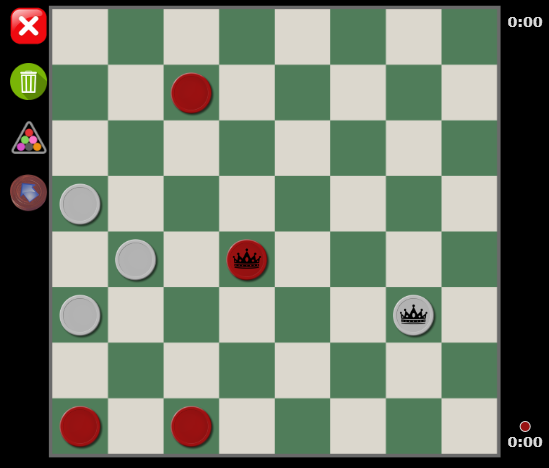
The red X will exit setup.
The green bin icon will clear the board.
The setup icon will set the board to the start position.
The piece icon is used to set the colour to move. In the example here, Black is to move.
To put pieces on the board, use the mouse to right-click and left-click multiple times, which will cycle between pieces, kings and empty squares for each colour.
If you find that you can’t place a piece, it will be because the resulting position would be illegal, for example a piece (not a king) on the crowning rank. However, you are allowed to place more than 12 pieces of a colour; whilst not technically legal, some puzzles require this.