View
As well as the view options below, bear in mind that you can adjust the panel dividers to your own preference. For example, you can get a “full screen” effect by moving the vertical divider to the far right of the screen which will show just the board in the centre of your monitor.
Flip Board
Turns the board upside-down.
Blindfold
Hides the pieces from view, the same effect as clicking the green tick on the board. Useful for engine matches where you don’t need to see the moves and want a little extra GUI performance, or if you really want to play blindfold of course.
Show Engine Output
Hides/shows the engine output, useful if you don’t want distractions when playing or if you are running an engine match and want extra GUI performance. Green tick does the same.
Show All Scores
The same as clicking the plus symbol on the Engine Output Panel, this displays the engine output as a list of all possible moves with their scores and variations. In ZoeEngine this also works for book moves if the moves are in the book.
This is very useful for game analysis. There is an analysis mode that uses this functionality and inserts the engine output in the game comments. Displaying the output in this way has an impact on engine performance and I recommend you use this facility for analysis only. In engine matches and some other game modes it is disabled. Not all engines have this “all scores” facility so in some cases the option is disabled.
Show Game Score
Hides/shows the game score, useful if you don’t want distractions when playing or if you are running an engine match and want extra GUI performance. Green tick does the same.
Game Score Layout
Allows you to select a horizontal or vertical game score layout. The horizontal layout takes up less space on screen, but the vertical layout is arguably easier to read.
Show Coordinates
Hides/shows the board coordinates.
Coordinate System
You can switch between the classic board coordinates for Checkers/Draughts or you can use chess coordinates (of the kind that appear in the book “One Jump Ahead”). ZoeEngine will output moves in the engine output window in that format too, but other engines do not have this facility (unsurprising since it’s not in the official API). The Database Panel will always show moves in the classic format.
Sound Effects
These can be switched on and off. Yes, those are real pieces you can hear – no expense spared.
Movement Speed
The speed of the pieces when moving can be adjusted here, from Instant to Very Slow.
Board Backgrounds
A variety of board backgrounds, such as simple colours and textures, can be chosen here.
Board Styles
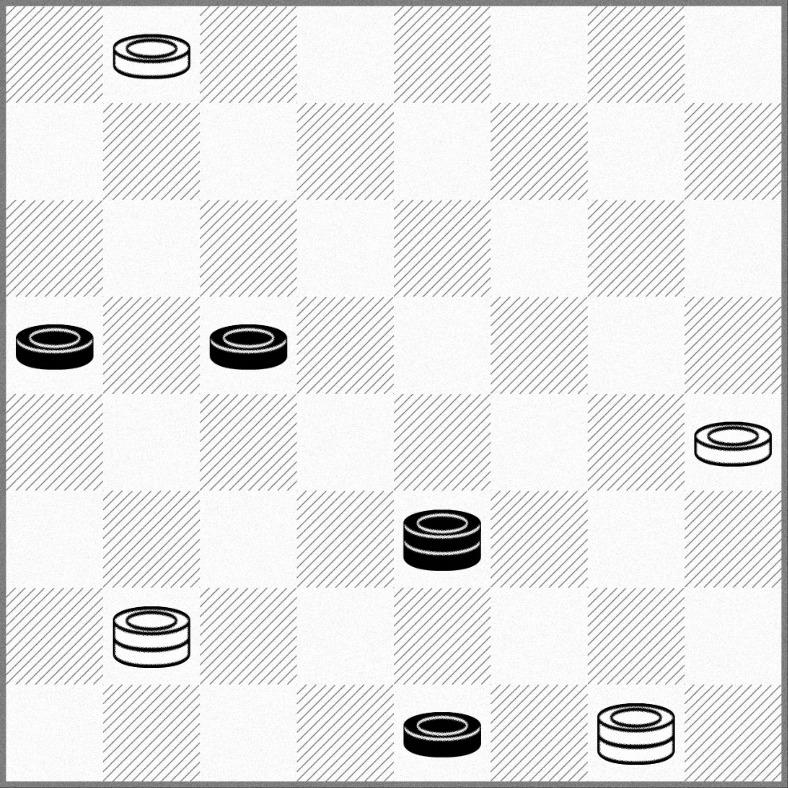
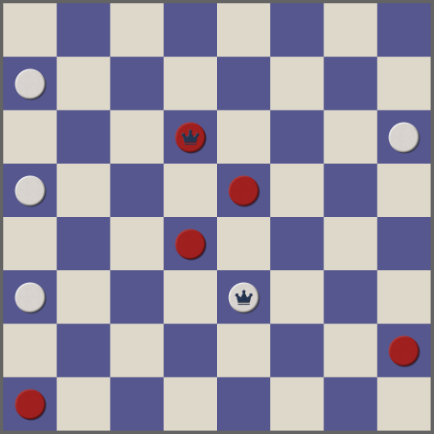
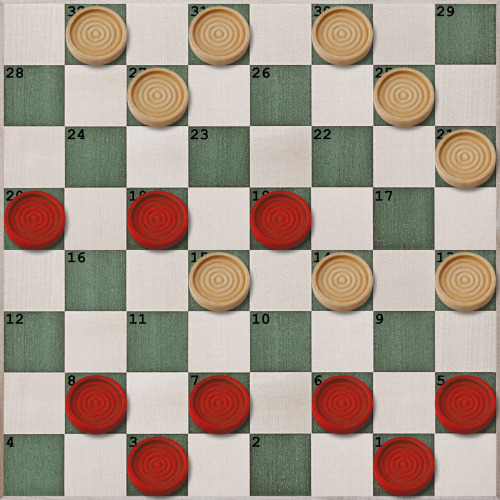
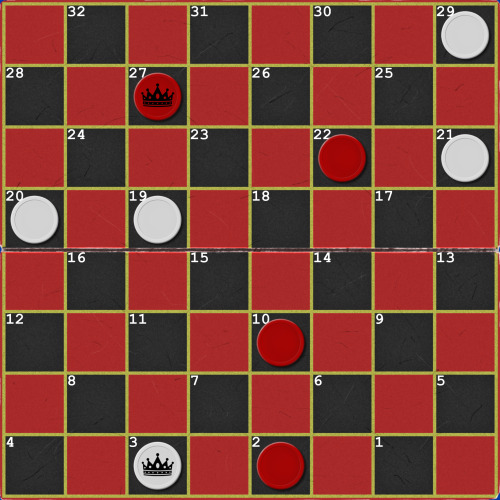
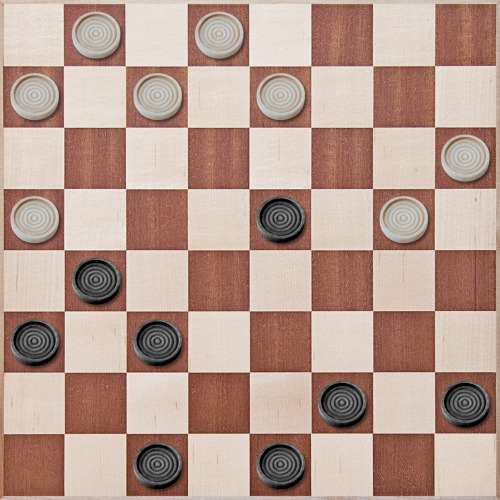
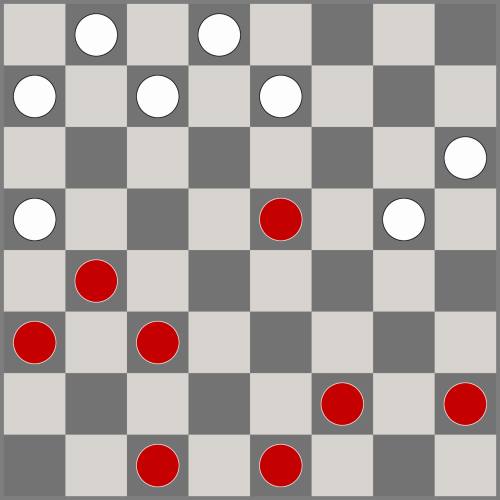
Board styles are available here, including standard green and buff, wooden boards and the red and black one you had as a kid.
Piece Styles
A choice of pieces is provided here, ranging from red, white, natural wood, black and plastic.
Piece Size
Change the size of the pieces here to suit your preferences. Use the slider to go big or small.
Set Red/Black Naming Convention
A regulation Draughts/Checkers set uses red and white pieces. Sometimes, you will see black pieces used instead of red, particularly on websites or the printed page. This can be a little annoying since you can have both “Black Wins” and “Red Wins” depending on the author. The default in CheckerPlayer (as of version 1.5.0) is “Red”, but if your preference is for “Black” you can set this on the View menu. If you open a PDN game and it has comments such as “Black is winning”, these will remain untouched.
Font Size
Use the slider to change the font size on the main panels, including the board coordinates. You can also use ctrl-mousewheel to do the same.
Some example configurations below, showing a selection of boards, pieces and sizes: