
Openings
Opening Book Strength
This will change the “opening strength” of the primary engine. The available settings are Off, All Moves, Good Moves and Best. These settings and their qualities are wholly dependent on the programmer of the engine. Some engines do not have an opening book and this option will be disabled. In general, All Moves should provide the widest range of openings whereas Best is usually limited to a smaller number of openings that are considered the highest quality.
Build User Book from this Database
There may be times when you want to play against a particular set of openings and you would like the engine to play those opening lines against you. Although most engines have their own opening books, there is no way to do this with just the engines themselves. This is where our User Book comes in.
A User Book can be set up to play lines that are in the on-screen database. Lets say you want to play openings that start with the moves 9-13 22-17 13×22 26×17. You can start by searching a database for the position after 26×17 or perhaps manually entering some games yourself if you know the lines. You can even just filter by the required openings, for example clicking on the Score filter and entering 1.9-13 22-17 2.13×22 26×17
You can edit the games so that they have only the lines you want. The lines can be any length, perhaps even full games. Eventually you have an on-screen database of games that have the lines you want to practise with. In my example below I have five full games by various players from various years, which I obtained using the Score filter:

We can now take the menu option, “Build User Book from this Database”. This will generate a User Book from those games and activate it. The User Book will take precedence over the normal engine opening book, so if you play 9-13 it will always reply with 22-17. If you then play 13×22 the User Book is invoked again and the engine reply will be 26×17. If you then play, say, 11-15, the reply will be a random choice from the User Book, i.e. 17-14 or 25-22. The more lines you have in the User Book, the more variety of play you will have.
If you play a move that steps out of the User Book, the normal engine opening book will take over, and if the engine book doesn’t have a suitable move the engine will start computing a move.
In this way you can play against a variety of openings with User Books that you generate yourself. If you want to add/delete/amend lines in the User Book you would simply make those changes to the database and then click “Build User Book from this Database” again.
If you are happy with the lines in the User Book, you can save the on-screen database as a PDN file so that you can open it in your next session and set it as the User Book again. If you don’t do this, you will lose the User Book when you close the program. If you want to use a favourite User Book you must open its PDN file and build the User Book from the resulting on-screen database.
When the option “Build User Book from this Database” is selected, the User Book is generated from the on-screen database and saved in memory. You could then open another PDN file and overwrite your on-screen database and it would not affect the User Book you have in memory (unless you decide to replace it using “Build User Book from this Database”).
Deactivate/Activate User Book
This gives you the facility to activate or deactivate the User Book that you generated. The User Book stays in memory until the end of the session so you can do this as often as you like.
2-Move Deck
The 2-Move Deck defines the kind of game you will get when you choose to play a 2-move game from the File menu. Two-move openings were once commonly played until they were overtaken in popularity by 3-move openings.
3-Move Deck
The 3-Move Deck defines the kind of game you will get when you choose to play a 3-move game from the File menu.
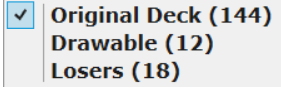
There are 174 positions in the full 3-move deck. 18 of these are considered losing openings and are not often used and there are 12 “drawable” starting positions. The default setting for CheckerPlayer is the 144 standard openings. You can mix these options as you wish.
Enable Opening Classification
When you play a game or load a game, if this option is ticked then you will see that the green introductory comment classifies the opening for you. If the game already has an intro comment (and it wasn’t generated by the built-in opening classifier), it is left as it is.
Opening Classification List…
This will show you the active list of openings which can appear in the introductory comments. Here you will see names such as “White Doctor”, “Switcher” and so on.
Navigate to Opening Classification Folder…
The file defaultopenings.pdn provides opening names and moves, for example “Twilight Zone” and “Alma”. This is the CheckerPlayer default. It is a normal PDN file and editing or deleting the file will have no effect on the function of CheckerPlayer.
If you want to add new openings or change the existing ones, you can make a copy of the file and call it:
useropenings.pdn
The next time you start the program, useropenings.pdn will be used as the source of the opening names and moves. You can edit this file as desired, adding/deleting/amending openings. It is recommended that you make a backup of your file (to a different folder) in case you lose it or it is deleted.