
Database

Edit Selected Database Game

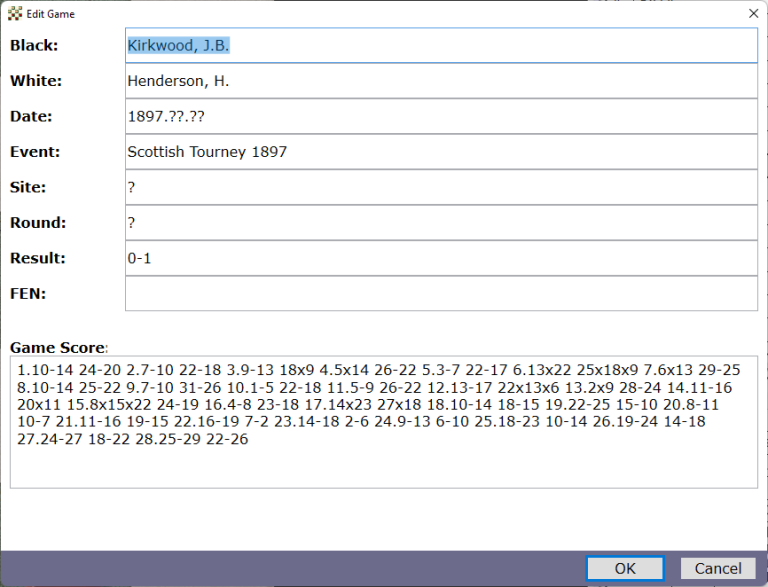
You can edit a highlighted game in the database with this option.  A panel will appear with the game tags and the game score, all of which can be edited.  The game is validated when you click OK.  This option is useful for correcting invalid game scores.  In the example below, you can edit anything and the corresponding game in the database will be updated.


Undo

If you have just performed a database action such as deleting games, removing all comments, overwriting the database by loading another PDN etc. you can undo that action immediately by using Undo.  Undo only applies to the immediate previous action, so you can’t undo two or more actions.

Clear Flags and Deselect All Games

If you have performed an action such as search or validation there will be games that bubble to the top of the database and they will be flagged.  This option will deselect those, returning the database to its normal display and removing the flags.

Clear Filters

Clears any database filters you may have applied.  You can also click on the green X.

Add Current Game

This will add the current game (in the Game Score Panel) to the database.  If you have a highlighted database game it will be added immediately after that position (going by ID number).  If no games are selected, it will be added to the end and allocated a new ID number.  You can also drag and drop the game to the Database Panel. 

Delete Selected Games

If you have highlighted one or more database games you can delete them using this menu item or by pressing the Delete key.  Ctrl-A will select all database games.

Replace Selected Game

If you have highlighted a game in the database, you can replace it with the current game (the one in the Game Score Panel) with this option.

Global Replace…

There may be text in your database that you wish to change, for example event names, misspelled player names, or even moves and comments.  Using the Replace tags option allows you to make changes to selected games or to the entire database.

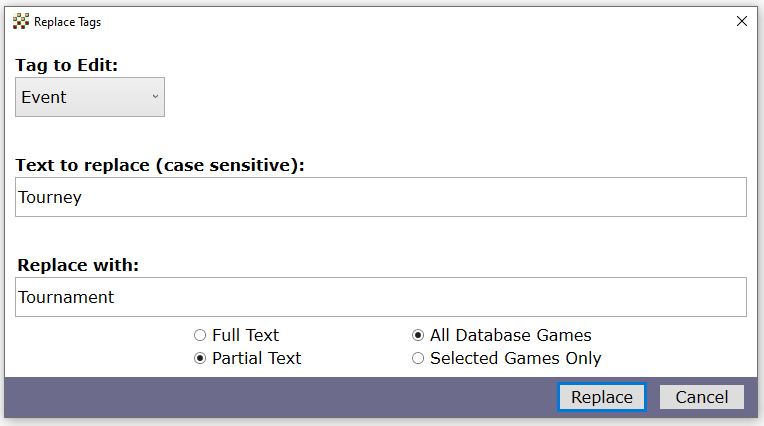
In this example we are replacing “Tourney” with “Tournament” in the Event tag.  We have chosen to perform our search/replace on any Event tag that has “Tourney” as part of the text (as opposed to searching/replacing the entire field) and we are applying it to all games in the database.


Improve Player Names…

It’s quite common to find misspellings in databases, or minor differences in the spelling of a player name.  For example,

oldbury, de
Oldbury, D.E.
Oldbury, Derek

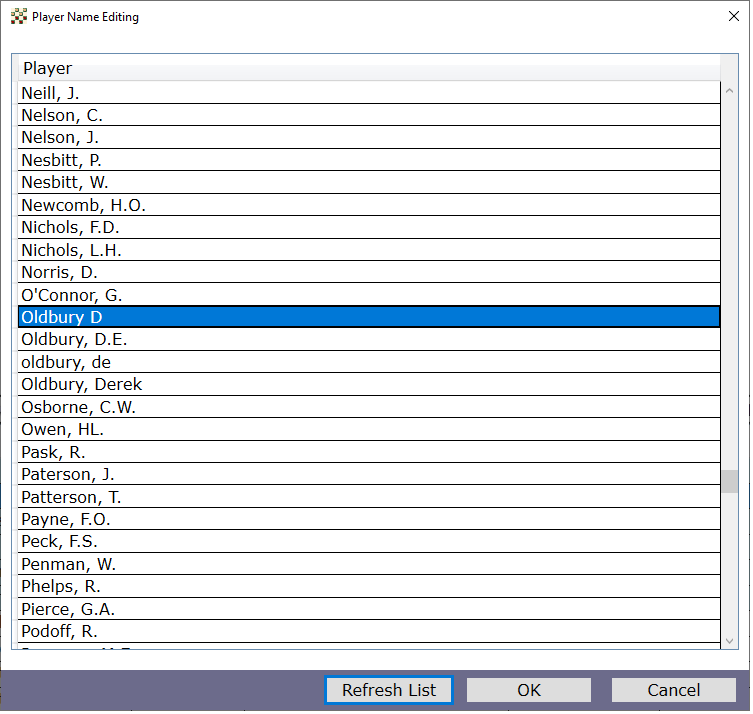
…and so on.  The “Improve Player Names” menu item gives you a convenient method of consolidating these names.  In the example below we have opened a PDN of a few thousand games into the on-screen database and we’ve clicked “Improve Player Names”.

What we get is a sorted list of all the players in the database.  The list can be edited to consolidate the names where required.

Here we can see:

Oldbury D
Oldbury, D.E.
oldbury, de
Oldbury, Derek

If we think these are all the same person and we simply want  “Oldbury, D.E.” then we can just edit the names.

Once done, click Refresh List to update the names.  Clicking OK will exit and apply the changes to the database.

This is a lot easier than going through the database game by game, or searching and replacing tags.


Improve Event Names…

The same consolidation can be done on Events, though this is less useful because Events often have game numbers in the title and you may wish to leave these as they are.

Remove Comments…

If you have annotated games you may sometimes wish to remove the comments.  With this menu item you can do this for selected database games or all games.  You will have the choice of removing any kind of comment, or just the introductory comment (which appears as green text on the game score).

Clean and Validate…

Not all PDN files follow the rules.  This menu item will perform minor formatting on the database games, for example adding move numbers where none exist, removing spurious spaces in move text and adding an opening classification.  But the real benefit is finding the games which have invalid moves.  These will be highlighted in red and the invalid games can be double-clicked to investigate the errors.

Here we’ve opened a PDN into the on-screen database.  We’ve run the Clean and Validate and it shows one game with errors:


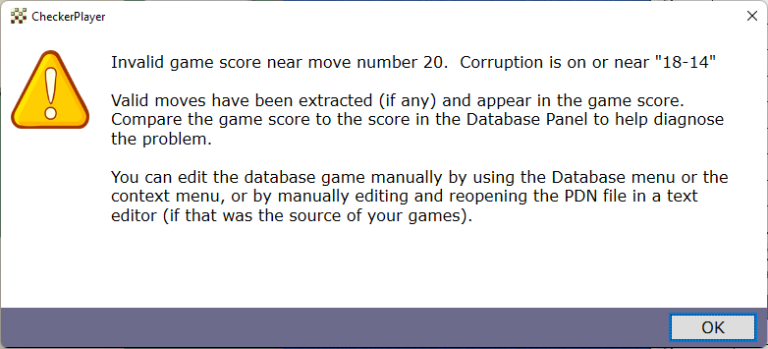
If we double-click the game we get a description of the error:


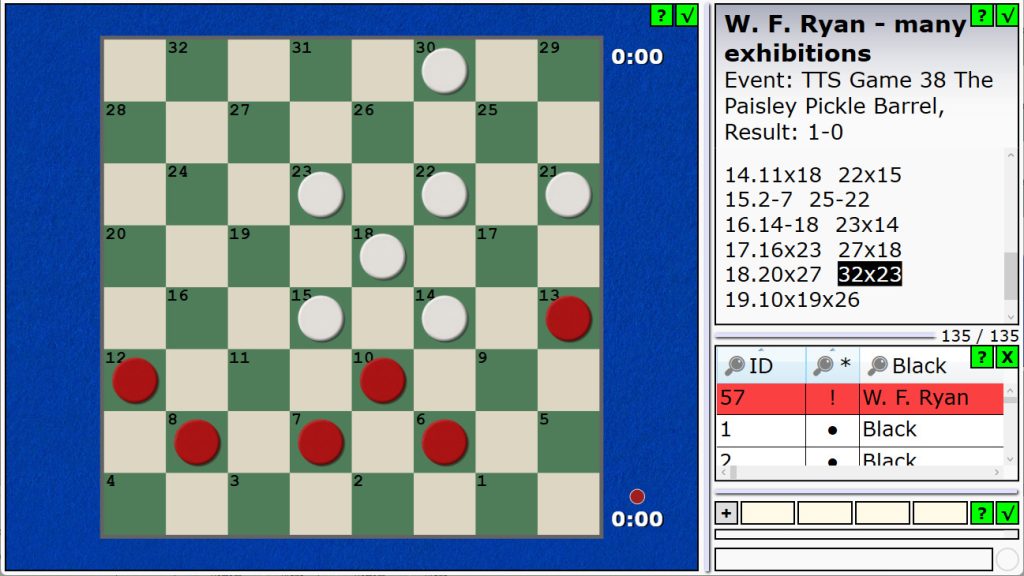
CheckerPlayer has been able to validate the moves up until move 19.  The image below shows the game after White’s move 18.  Black now has two possible jumps:  19. 10x19x26 (which you can see on the Game Score Panel) and 19. 10x17x26.


If we right-click on the invalid database game (which was highlighted in red) and click “Edit Selected Database Game…” we get to the panel below and we can edit the moves.   

Looking at the panel we can see the original game score that was in the database.  We can see what the problem is: the score has this “shorthand” move:

19. 10x26

…which CheckerPlayer interpreted as 10x19x26   –  there were two ways that it could have captured:

10x17x26 or 10x19x26

The move after 10x19x26 according to the original database score is 18-14, which is possible if 10x17x26 was played but not if 10x19x26 was played.

So what we need to do to correct the problem is explicitly state the move as 10x17x26 rather than the short ambiguous version 10×26 that was in the PDN.

The easiest way to do this is simply to use the editing panel and change the moves:

Click OK to validate the game and the job is done.  If you were to now double-click the amended database game it will load correctly into the Game Score Panel.

There are other ways of editing the game.  You could also play it on the board, or physically amend the original PDN file in Windows Notepad, or use the Database menu option “Global Replace…” to replace the move text of the selected game, but a direct edit is the easiest.

Find Duplicates…

Duplicates are quite common in Checkers/Draughts games because of the nature of the game.  Duplicate games can be played by different players, even in the same tournament.  However, with large databases it is common to see invalid duplicate entries which are the same game and same players in the same tournament in the same round.  This menu item will help in finding duplicates of any kind.

Taking the option brings up a panel of parameters where you can find duplicates based on the game score alone (useful for the results of engine matches where you want to see how expansive the opening books are).  You can also perform fuzzy matching on player names and events which will be better at finding database duplicates that should not be there.

The results will be a list of flagged items.  In the image below you can see green ticked items and orange question-marked items.  CheckerPlayer thinks that the green items could be kept and the orange items (directly above the green) are likely to be duplicates and can possibly be deleted.  Obviously, some care should be taken.  Note a slight difference in the names (WF Ryan and Ryan, W.F.)  This is a result of the fuzzy matching which thinks that they are the same player.  The same matching is applied to the Events.

You can use ctrl-click to select multiple games and then delete with the delete key, the context menu or the Database menu.


Renumber Database

When you view the Database Panel you can sort the columns by clicking on them.  To sort by multiple columns, e.g. Date/Black/White etc. you can shift-click on the columns.  The ID column will then appear to be out of order but your Date/Black/White columns will be in the order you chose.

If you then save the database as a PDN file, the visible ordering is retained in the file so that it matches what you see on-screen.

If you are compiling a collection of games in a certain order (which may not be in any particular column order) you may wish to renumber the games so that they are all in number sequence, starting at 1. This cements the current ordering and allows you to conveniently add or move new games to specific positions in the list.

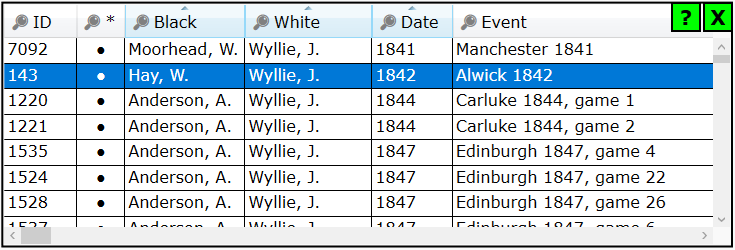
You can see the columns were logically ordered by Date/Black/White by shift-clicking.  Because of this, the ID column is now unordered.  If you added (or dragged) a game onto ID#143, it would be inserted as game #144 and might not be immediately visible because of the sorting that is applied.

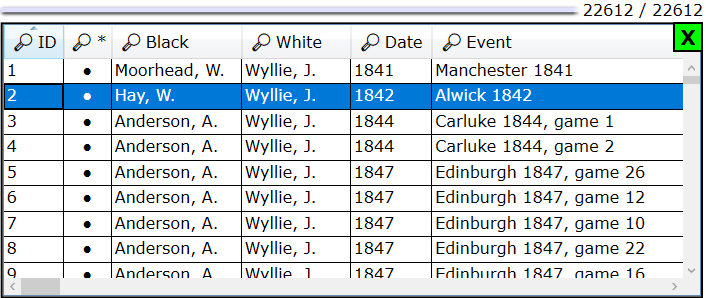
After a database Renumbering, the games are permanently sorted by Date/Black/White and the ID column is now 1,2,3 etc.  If you added (or dragged) a game onto ID#2, it would be inserted as game #3 and would be visible between the Hay and Anderson games.


Database Stats

This provides some basic statistics in the status bar just under the engine output: the number of games, win/draw/loss percentages, average number of moves per game etc.  Filters are taken into account.

Session Database Log…

This shows the changes that have been made to the database (and/or any file activity) in this session.