
File
New Game
Lets you start a new GAYP (go-as-you-please) game, the standard starting position of a normal game of checkers/draughts.
New 3-Move Game
Starts a new 3-move game, the format of which can be chosen from the Openings menu. A 3-move game starts with three moves already played. There are 144 standard openings for this format, which can be extended to 174 by using the Openings menu.
New 11-Man Ballot Game
In this type of game, a piece from each side is removed from the board and a move is played by each side. There are 2500 variations that can appear, some of which are known to be losing.
New 2-Move Game
If you want to go old-school, you can play a 2-move game where a move is played by each side at the start. There are 43 standard variations of this, and on the Openings menu you can include another four which are known as the “barred” openings.
Open PDN File…
Lets you open a PDN file and view it in the Database Panel, where you can navigate, sort, filter and edit the games. Note that the original PDN is unchanged. Basic validation is performed to ensure that the games are readable. To keep it fast, move-by-move validation is not performed at this stage but will be invoked when viewing an individual game or when running the full validation from the Database menu.
You can open multiple PDN files in one go and they will all be loaded into the database.
When you install CheckerPlayer, the default folder is C:\ProgramData\CheckerPlayer\games and in this folder you can find sample games from the Open Checker Archive (see credits in a previous section). ProgramData is a hidden folder so you may need to change your folder view options if you want to navigate to it using Windows File Explorer.
The default file type of a PDN file is *.pdn although CheckerPlayer gives you the option to open *.txt files and other file types. Whichever file you open, it needs to be in the standard PDN format, in other words a simple text file (not *.rtf or *.doc files which might contain non-text characters). When manually editing such files it is best to use Windows Notepad.
Save Database as PDN File…
Your on-screen database can be saved with this option. The entire database, including whatever ordering you may have performed on it, is saved to a PDN file and you can either create a new PDN or append/overwrite an existing PDN.
Save Current Game to PDN…
The current game shown in the Game Score Panel can be saved to a PDN file, creating a new PDN or appending/overwriting an existing one.
Save Selected Database games to PDN…
If you have highlighted some database games (which you can do with a click, a ctrl-click or a shift-click) you can save these particular games to a PDN file, creating a new PDN or appending/overwriting an existing one. This option is useful for compiling new game collections from existing collections.
Print Current Game…
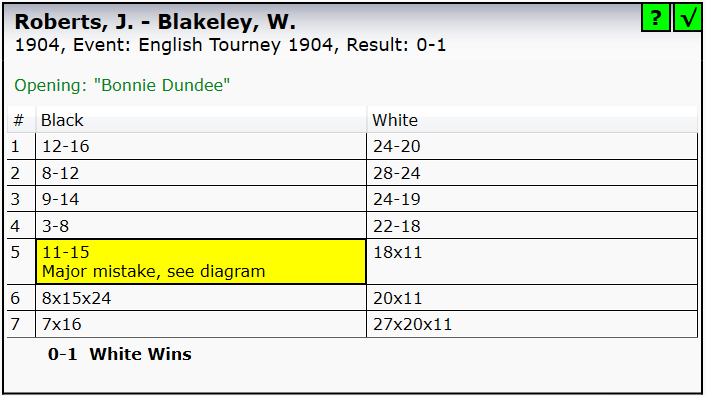
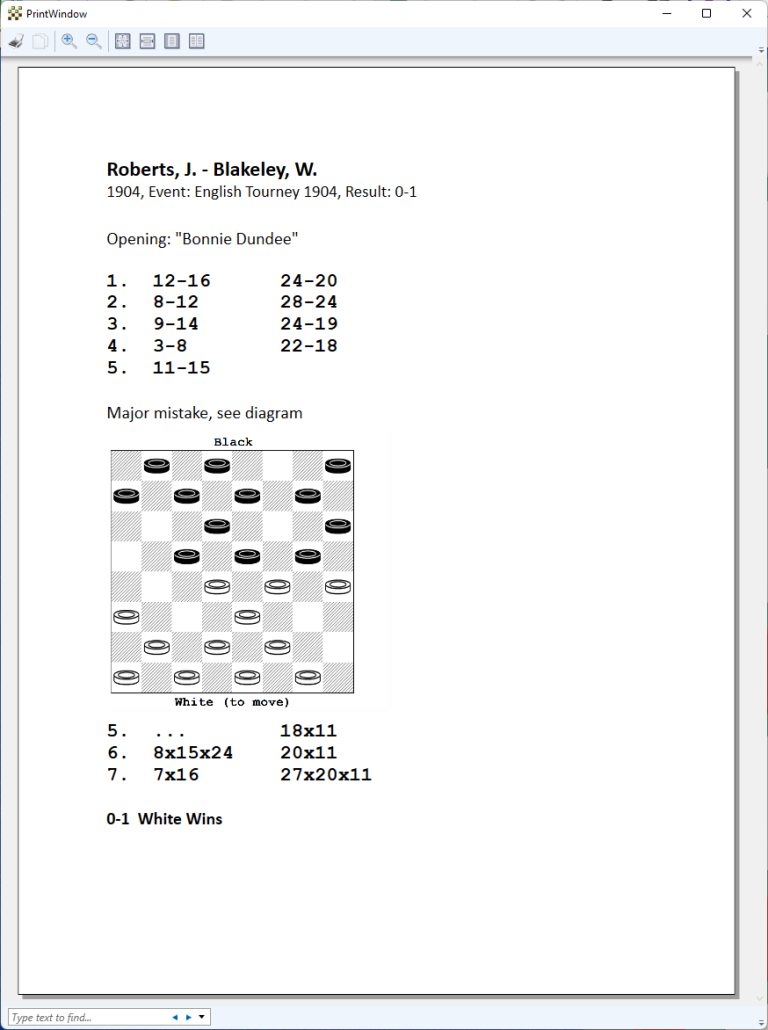
Brings up the print preview dialog in preparation to print your current game (the one shown in the Game Score Panel). If any of the comments in the game have the word “diagram”, a diagram will be inserted into the printout at that point. You will have the option of printing diagrams with or without square numbering and with White or Black at the bottom.
You will also have the option of printing the game score horizontally, which saves space.
For example, the game score below would have the adjacent printout if square numbering was not selected, White was chosen to be on the bottom of diagrams and the vertical layout was chosen.
Print Current Position…
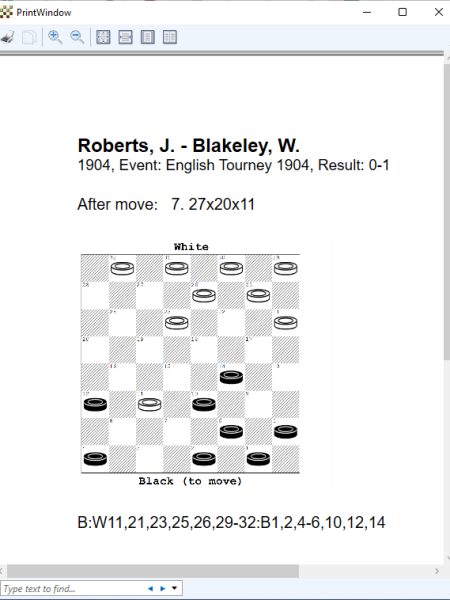
Brings up the print preview dialog with the game header and the current board position together with the move that was just played if any, and the FEN string for the position. You will have the option of printing diagrams with or without square numbering and with White or Black at the bottom.
For example, the position below is selected for printing with square numbering and with Black on the bottom.
Export game to HTML…
Creates an HTML file and an Images folder which you can open in a browser and play through. The HTML has a navigable board (with numbered squares if you wish) and smooth-scrolling game score that keeps the board in view. Clicking the moves in the score takes you to that position in the game and clicking an Auto button plays through the game automatically. You can upload the HTML and Images folder to a website if you want to show games on your site. If required, the piece and square images (which reside in the Images folder) can be altered in a photo editor. When exporting to HTML, the contents of the Images folder will not be overwritten if they already exist. If you are using your own images, or images from a previous version of CheckerPlayer, note that for the numbered board to work correctly, the pieces need to have transparent backgrounds.
The game below was created using the CheckerPlayer HTML export function and is displayed unaltered within an iFrame. You should be able to click on the moves and scroll through the game.
(Some mobile browsers don’t scroll iFrames properly).
Export game to Video…
This will export a video of the current game as an mp4 file. The video will contain the player names and event details, an animated board (with the same style and pieces that you are using currently) plus the moves and comments. When generating the video, a speeded-up preview will be shown.
You can choose the size of the video, the font size, the delay between moves and an adjustment for commented moves.
The video is created with an aspect ratio of 9:16 which makes it ideal for viewing on smartphones. It can also be embedded in websites.
Exit
If you have a database on-screen and you have made changes to it, you will get a reminder before you exit so that you can save it if you want. The current game shown on the Game Score Panel will be retained for your next session.